Smartphone Camera Security Audit
ⓘ Security Assessment
Check the boxes above to analyze your current level of protection against unauthorized camera access.
It’s a chilling thought that keeps many of us up at night: is someone watching you right now through your phone’s front-facing lens? You’re sitting on the sofa in Sheffield, or maybe getting ready for work, and suddenly you wonder if a stranger has remote access to your device. The short answer is yes, it is technically possible. However, it is not as easy or common as Hollywood movies suggest. Modern smartphones are fortified with multiple layers of security designed specifically to stop this kind of unauthorized surveillance.
The fear of being watched is real because the threat exists. Malicious actors do target smartphone cameras, which are sensors capable of capturing visual data that can be transmitted remotely if compromised. But these attacks usually require specific conditions, such as you installing malicious software or granting excessive permissions to an app. Understanding how these breaches happen-and more importantly, how to stop them-is the best defense you have.
How Hackers Actually Access Your Camera
To understand the risk, you need to know the method. Hackers rarely just "break in" from the outside like in sci-fi films. Instead, they rely on social engineering and user error. The most common vector is spyware, which is malicious software installed on a device to secretly monitor user activity.
Spyware often arrives disguised as a legitimate app. You might download a free game, a flashlight utility, or a photo editor from a third-party website rather than the official App Store or Google Play Store. Once installed, this app asks for permission to access your camera, microphone, and location. If you click "Allow," you’ve handed over the keys. Some sophisticated spyware even creates its own camera icon that looks identical to your standard camera app, making it nearly impossible to spot without specialized detection tools.
Another risk comes from legitimate apps that get compromised. An app you trust, like a social media platform, could theoretically be hacked by attackers who then inject code to access your camera. This is why keeping your apps updated is critical. Developers constantly patch these vulnerabilities. If you are running an outdated version of an app, you might be using a version with known security holes that hackers can exploit.
The Green Dot: Your Built-In Alarm System
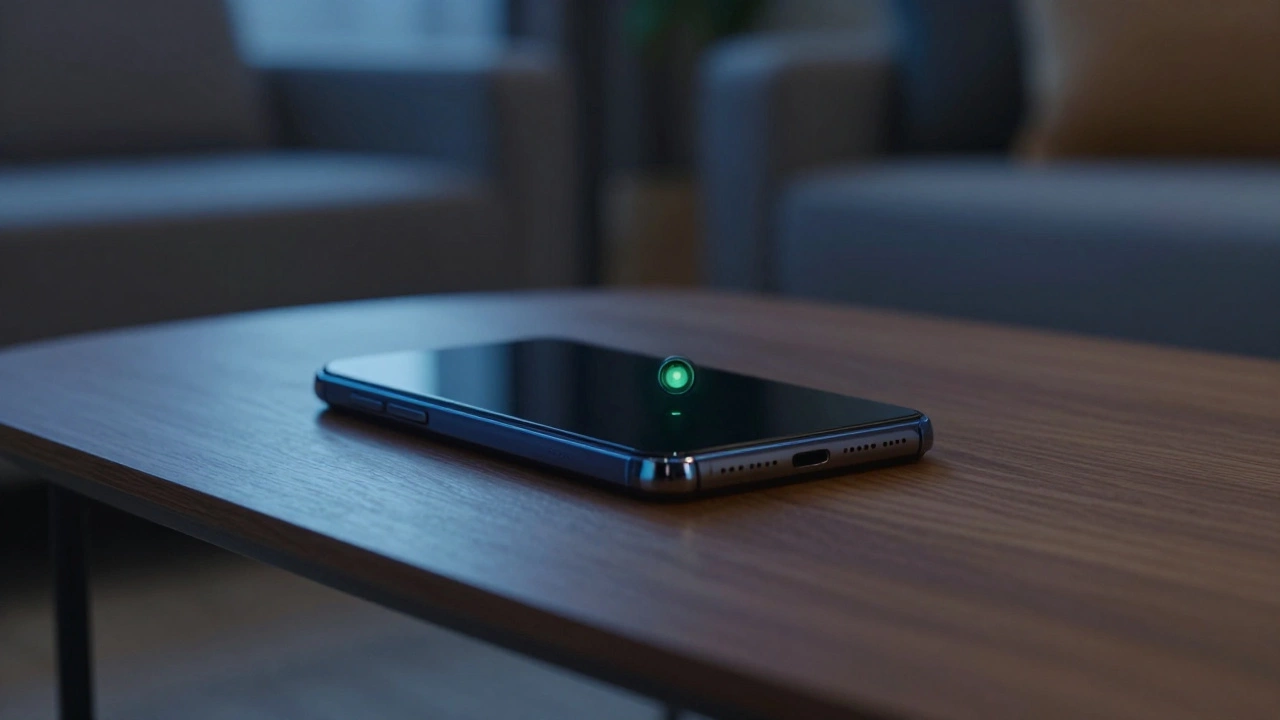
Good news: Apple and Google have made it much harder for hackers to operate in the shadows. Both major operating systems now include visual indicators that alert you when the camera or microphone is active. These are your first line of defense.
If you use an iPhone running iOS 14 or higher, which is Apple's mobile operating system featuring enhanced privacy indicators, look at the top right corner of your screen. When an app accesses your camera, a small green dot appears. If the microphone is being used, you’ll see an orange dot. These dots stay visible until the app stops using the sensor. It doesn’t matter if the app is open in the foreground or running in the background; if the camera is on, the green dot shows up.
Android users enjoy similar protection. On devices running Android 12 or newer, which is Google's mobile operating system with robust privacy features, a green indicator light also appears in the status bar when the camera or microphone is active. Older Android versions might show a camera or microphone icon instead. To test this feature, simply make a video call on WhatsApp or FaceTime. You should see the indicator light up immediately. Standard voice calls will not trigger the camera indicator, only the microphone one.
If you see that green dot appear when you aren’t using the camera, don’t panic. First, check if a background app is updating or syncing. If nothing explains it, that is a red flag. It means something is trying to record you.
Auditing Your App Permissions
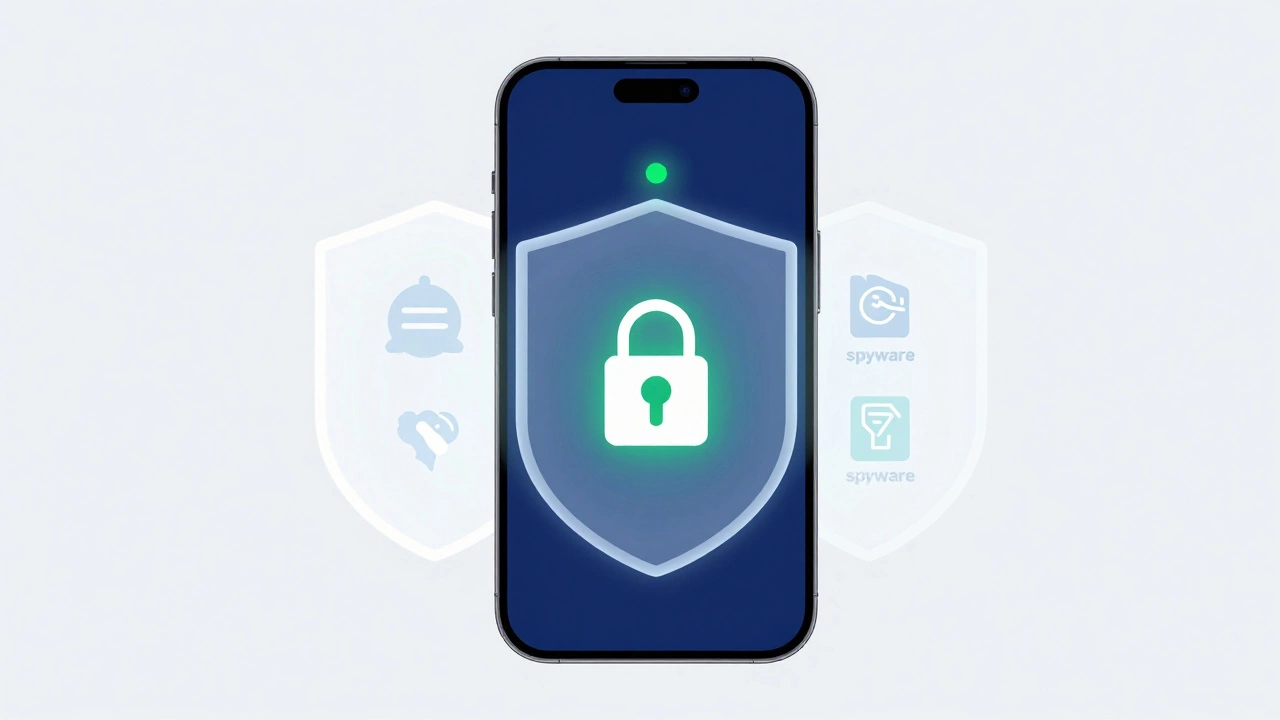
The most effective way to secure your phone is to take back control of what each app can do. Many apps request camera access unnecessarily. A keyboard app doesn’t need your camera. A calculator certainly doesn’t. Yet, people often click "Allow" without thinking, just to get past the prompt.
On Android, go to Settings > Apps > Permissions Manager > Camera. Here, you’ll see a list of every app that has requested camera access. Review this list critically. For apps that don’t need the camera, select "Don’t Allow." For apps that do, like Instagram or Snapchat, choose "Allow only while using the app." Never select "Allow all the time" unless absolutely necessary, as this grants constant access even when the app is closed.
For iPhone users, navigate to Settings > Privacy & Security > Camera. You’ll see a toggle switch next to each app. Turn off any app that doesn’t require camera functionality. The same process applies to the Microphone menu. Security experts recommend revoking permissions for infrequently used apps entirely. If you use a QR code scanner once a month, disable its camera permission after you’re done. This limits the damage if that specific app gets compromised later.
Physical Barriers: The Ultimate Guarantee
Software protections are great, but they can fail. Bugs happen, updates lag, and human error is inevitable. That’s why physical protection remains the gold standard for privacy. If you cannot physically see the lens, no amount of hacking can capture your image.
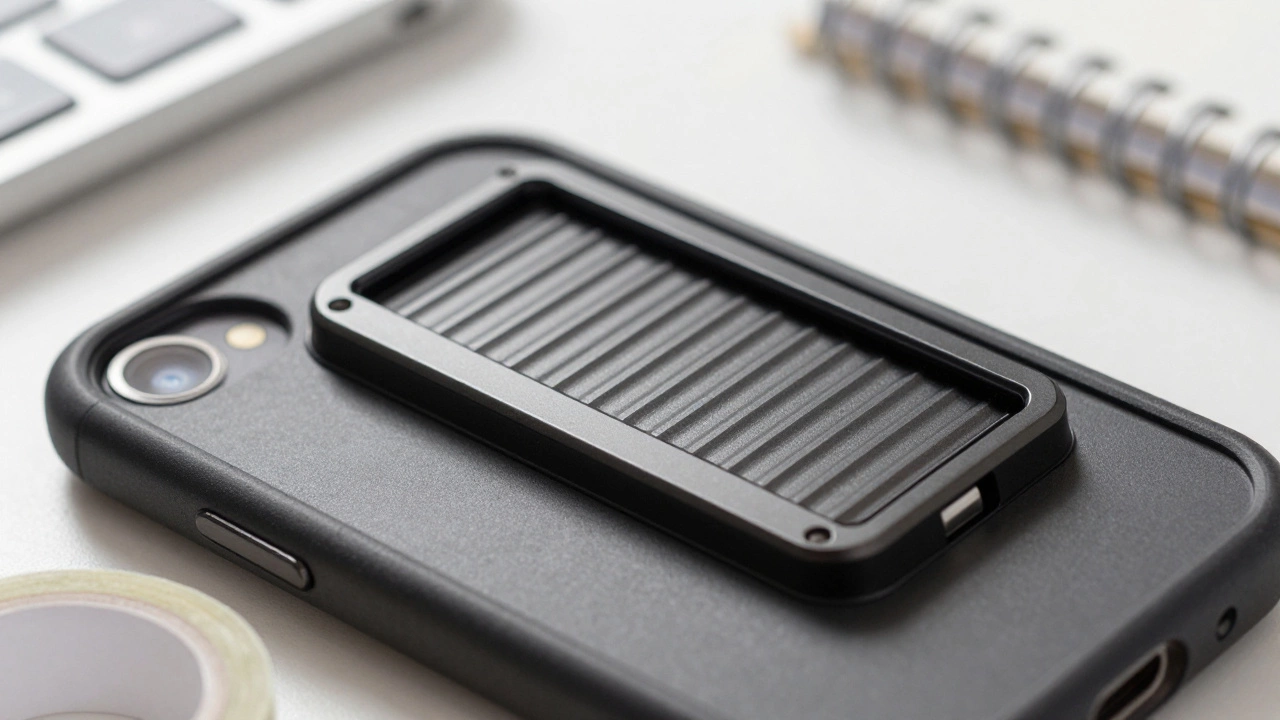
You can buy simple sliding covers for your phone case. Brands like Spy-Fy offer cases with built-in shutters for both the front and rear cameras. These covers are designed to be compatible with wireless charging and Face ID, so they don’t disrupt your daily workflow. When you want to take a photo, you slide the cover open. When you’re done, you slide it shut. It’s a mechanical lock that software cannot bypass.
If you don’t want to buy a new case, a piece of opaque tape works just as well. It’s cheap, effective, and instantly visible. While it might ruin your selfies, it guarantees that no one is watching you through the lens. For many people living in high-security environments or those who handle sensitive information, this peace of mind is worth the inconvenience.
Detecting and Removing Spyware
If you suspect your phone is already compromised, you need to act fast. The first step is to run a dedicated anti-spyware scan. While built-in security features on iOS and Android are good, third-party security apps often have more aggressive detection algorithms for known malware signatures.
Look for reputable security applications from established vendors. Run a full system scan. If the app detects threats, follow its instructions to remove them immediately. After removal, change all your passwords. Assume that if someone had camera access, they might have also accessed your keystrokes or saved login credentials.
Additionally, check for unusual battery drain or data usage. Spyware runs in the background, consuming power and uploading data. If your phone feels hotter than usual or your battery dies faster than it used to, investigate further. Go to your battery settings to see which apps are consuming the most energy. If a random utility app is using 30% of your battery, uninstall it immediately.
Prevention Best Practices for 2026
Security is not a one-time setup; it’s a habit. To keep your phone safe throughout 2026 and beyond, adopt these routines:
- Keep software updated: Enable automatic updates for your OS and apps. Patches fix security holes that hackers exploit.
- Use strong authentication: Set a complex PIN (at least eight characters) and enable biometric locks like Face ID or fingerprint scanning. This prevents anyone from physically picking up your unlocked phone and starting a recording.
- Restrict background data: On Android, set your camera app’s background data to "Restricted." This prevents it from transmitting data when not in active use.
- Download only from official stores: Avoid sideloading apps from unknown websites. The App Store and Google Play Store have rigorous vetting processes.
- Review permissions quarterly: Set a reminder every three months to audit your app permissions. New apps accumulate over time, and old ones may become unnecessary.
Can someone hack my phone camera without me knowing?
Yes, it is possible, but difficult on modern devices. Hackers typically need to install spyware or exploit a vulnerability in an app you’ve granted camera permissions to. However, iOS and Android now display green/orange dots when the camera is active, making stealthy surveillance much harder to maintain unnoticed.
What does the green dot on my iPhone mean?
The green dot indicates that an app is currently accessing your camera. This includes apps running in the background. If you see the dot when you aren’t using the camera, check your recent apps or review your camera permissions in Settings to identify which app is responsible.
Do I really need a physical camera cover?
While not strictly necessary for everyone, a physical cover provides absolute assurance. Software protections can have bugs or be bypassed by advanced malware. A physical shutter ensures that even if your phone is fully compromised, no visual data can be captured. It is recommended for high-risk individuals or those who prioritize maximum privacy.
How can I tell if my Android phone is being spied on?
Look for the green indicator light in the status bar when the camera is active. Additionally, check for unusual battery drain, overheating, or strange behavior like apps opening on their own. Use a reputable anti-malware app to scan your device for known spyware signatures.
Is it safe to grant camera permissions to all apps?
No, it is not safe. Granting broad permissions increases your attack surface. Only grant camera access to apps that explicitly need it for their core function, such as social media or messaging apps. For others, select "Don’t Allow" or "Ask Every Time" to minimize risk.