Security Camera Notification Compatibility Checker
Check Your Compatibility
Select your phone brand and security camera brand to see if push notifications will work.
When you install a security camera, you’re not just setting up a camera that records footage-you’re setting up a live alert system that tells you what’s happening, even when you’re not home. The short answer? Yes, security cameras can and do alert your phone. But it’s not magic. It’s smart tech working behind the scenes, and knowing how it works makes all the difference between peace of mind and missed alerts.
How Security Cameras Send Alerts to Your Phone
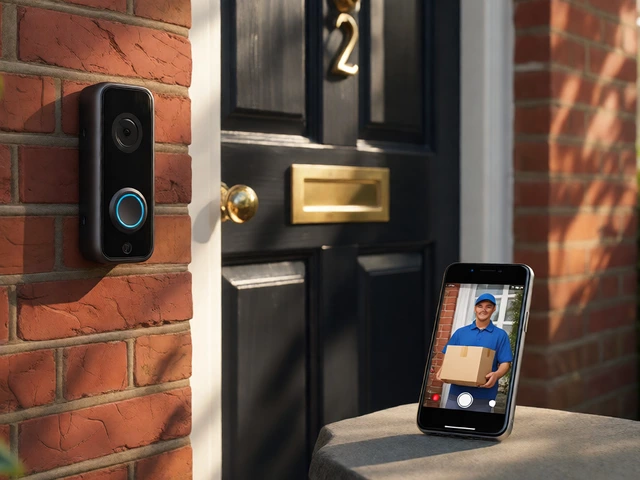
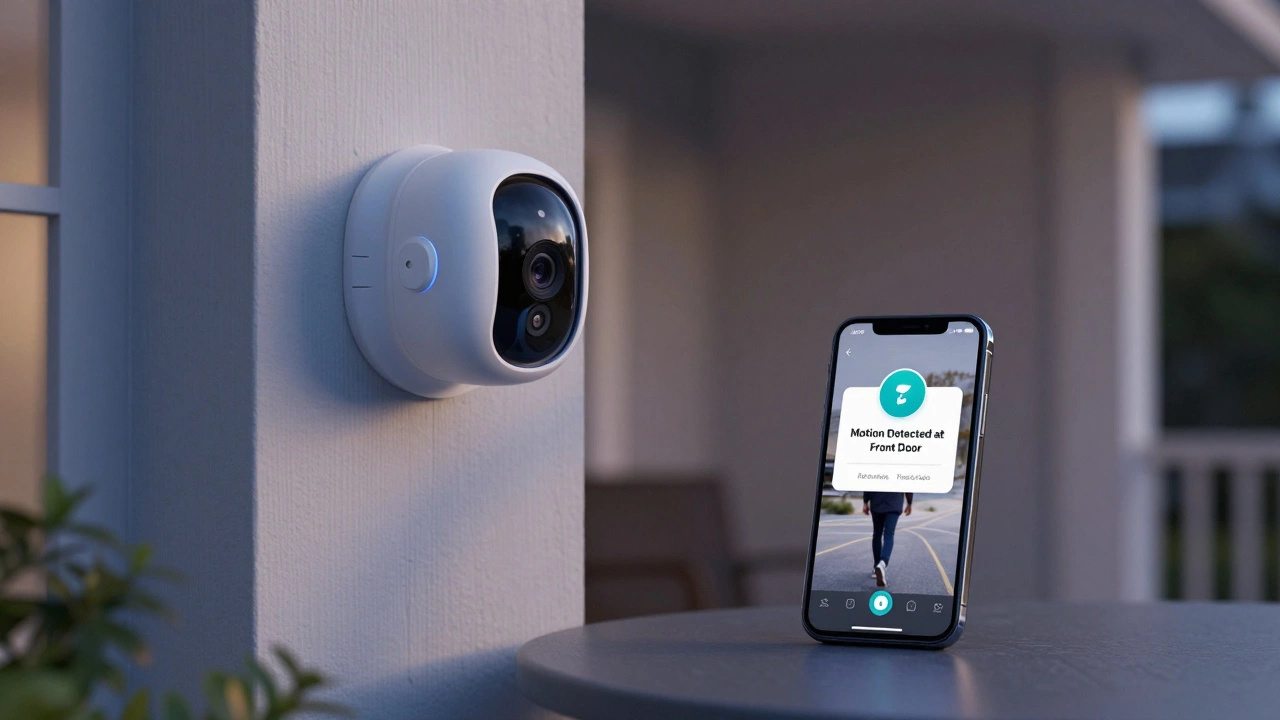
Modern security cameras don’t just sit and record. They’re connected to your home Wi-Fi and paired with a mobile app. When something moves in front of the camera, the system doesn’t wait for you to check the footage later. It acts fast. Within seconds, you’ll get a notification on your phone-whether you’re at work, on the bus, or on vacation. These alerts are sent as push notifications. That means they pop up on your lock screen or notification center even if the app isn’t open. Unlike email alerts, which can get lost in spam folders or delayed by servers, push notifications are designed to be fast and reliable. Most security camera brands-like Reolink, Frontpoint, and Solink-use this method because it works even when your phone is asleep. Behind the scenes, the camera uses motion detection. Older models just looked for changes in pixels-like a shift in light or shadow. But that caused tons of false alarms: a tree swaying, a pet walking by, or sunlight flickering through blinds. Today’s cameras use smarter methods. Many combine PIR sensors (which detect body heat) with pixel analysis. So if something warm moves-like a person-the camera triggers an alert. If it’s just a shadow? It ignores it.Setting Up Phone Alerts: The 3 Simple Steps
Getting alerts on your phone isn’t complicated, but skipping a step means missing out. Here’s what you need to do:- Download the right app. Every camera brand has its own app. Reolink uses the Reolink App, Frontpoint uses its own, and so on. Make sure you get the official one from the App Store or Google Play. Don’t use third-party apps-they won’t work properly.
- Enable phone notifications. Open your phone’s Settings > Notifications > find the camera app. Turn on notifications. On iPhones, you’ll also want to allow “Lock Screen” and “Sound.” On Android, check that “Background Activity” is allowed. Some phones (especially Huawei or Xiaomi) block background notifications by default-so this step is critical.
- Log in and turn on alerts in the app. Open the camera app, sign in, go to the settings menu, and find the “Notifications” section. Toggle on “Motion Alerts.” You can also choose which cameras get alerts if you have more than one.
Types of Alerts You Can Get
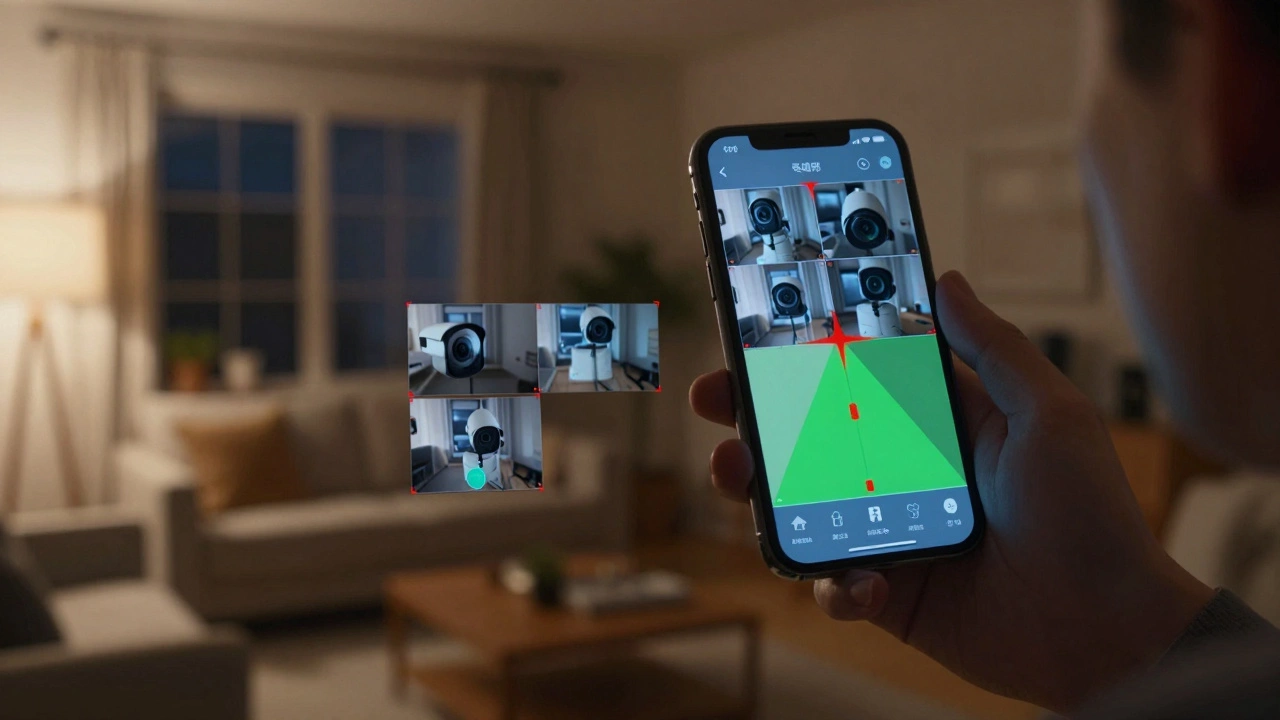
Not all alerts are the same. Modern systems let you customize what triggers a notification:- Motion Alerts: The most common. Triggers when movement is detected in your set zones. You can draw boxes on the screen to ignore areas like trees or busy sidewalks.
- Person Detection: Advanced cameras use AI to tell the difference between people, animals, and vehicles. If your cat walks by, no alert. If a stranger approaches your porch, you get notified.
- Camera Health Alerts: If the camera loses power, gets blocked by snow, or disconnects from Wi-Fi, you’ll get a heads-up. This prevents blind spots you didn’t know existed.
- Doorbell Press Alerts: If you have a video doorbell, you’ll get a notification every time someone rings-even if they don’t move.
- Schedule-Based Alerts: Set times when alerts are active. For example, turn off alerts during the day when you’re home, and turn them on at night.
Why Push Notifications Beat Email or SMS
Some older systems still rely on email alerts. But here’s the problem: emails can take minutes to arrive. They might land in spam. Or your inbox might be full. And SMS? It costs money to send, and carriers sometimes delay them. Push notifications solve all that. They’re free, instant, and delivered directly to your phone’s notification center. Even if you’re not using the app, the system wakes up your phone. Reolink’s cameras, for example, can send alerts to iPhones and Huawei phones even when the app is closed. That’s because the camera connects directly to cloud servers, which then ping your phone through Apple’s or Google’s push services. This reliability matters. If someone breaks in at 3 a.m., you need to know now, not when you check your email tomorrow.What Happens After the Alert?
Getting the alert is just the start. Most apps let you do more:- Watch Live Feed: Tap the alert and instantly see what’s happening. No need to open the app first.
- Two-Way Talk: Use your phone to speak through the camera’s speaker. You can tell a delivery person to leave the package on the porch, or warn a stranger to stay away.
- Remote Pan-Tilt-Zoom: If you have a PTZ camera, you can rotate it or zoom in from your phone. Perfect for checking a noisy backyard or seeing who’s at the side gate.
- Save Clips: Alerts often come with a clip saved to the cloud or SD card. You can replay it later or share it with police.
Phone Compatibility Matters
Not every phone works the same. Most cameras support iOS and Android, but some brands struggle with certain manufacturers. Huawei phones, for instance, don’t use Google’s push service. Instead, they rely on Huawei Mobile Services (HMS). If your camera app doesn’t support HMS, you might miss alerts when the app is closed. The same goes for Xiaomi phones with their aggressive battery-saving features-they sometimes kill background apps to save power. Solution? Check your camera’s compatibility list before buying. Reolink, Eufy, and Arlo all list supported phones on their websites. If you’re on a Huawei or Xiaomi phone, look for models that say “works with HMS” or “optimized for battery-saving modes.”
Real-World Uses Beyond Home Security
You don’t need to be a homeowner to benefit. Business owners use this tech every day:- A café owner gets an alert when someone tries to break in after closing. They call the police before the thief even gets inside.
- A warehouse manager sees a delivery truck arrive at 2 a.m. and checks the feed-turns out it’s a mistake. Saves time and avoids confusion.
- A landlord gets a notification that the basement camera is foggy. Turns out the pipe leaked. They fix it before mold spreads.
What If You Don’t Get Alerts?
If you set everything up and still don’t get notifications, here’s what to check:- Is your phone connected to Wi-Fi or mobile data? Alerts need internet.
- Did you allow notifications in both the app and phone settings? Double-check both.
- Is your camera online? Open the app and see if it shows as “Online.” If it says “Offline,” the camera lost power or Wi-Fi.
- Is the app updated? Old versions often have bugs. Update it from the App Store or Google Play.
- Are you using a phone with aggressive battery saving? Try disabling battery optimization for the camera app.