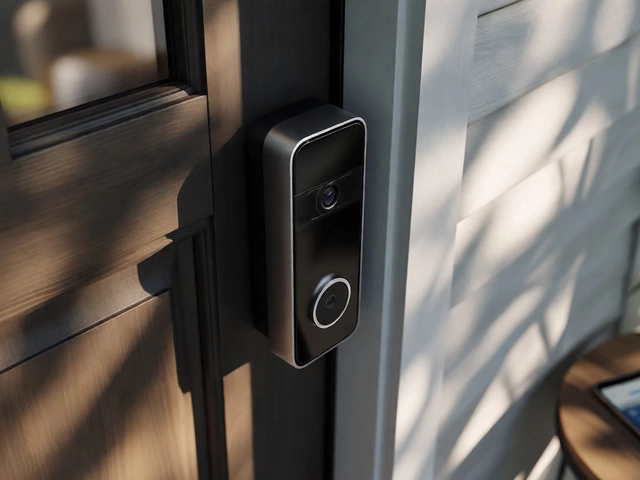
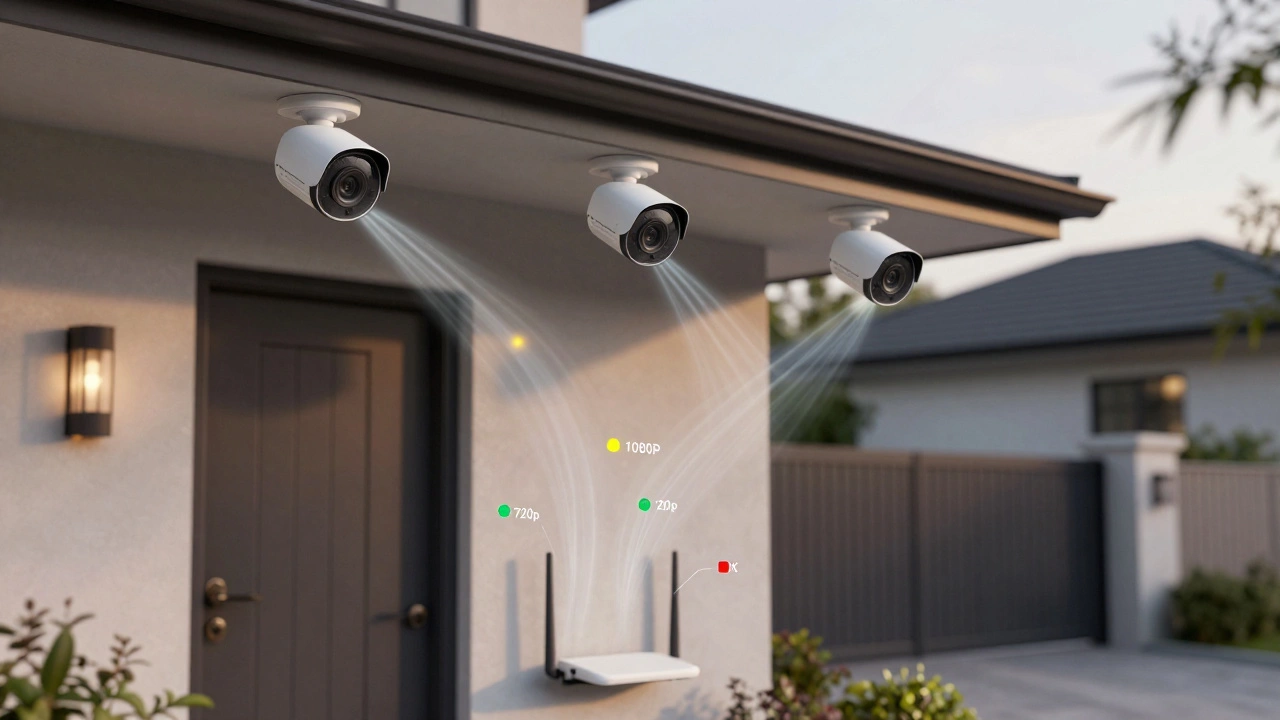
Wireless security cameras are popular because they’re easy to install-no drilling, no running cables. But if you’ve ever added one to your home and noticed your internet slowing down, you’re not alone. The real question isn’t whether they use WiFi-it’s how much, and whether your network can handle it.
How Much WiFi Do Wireless Cameras Actually Use?
It depends. A basic 720p camera recording only when it sees motion might use as little as 60 GB per month. A 4K camera streaming 24/7? That could chew through 1 TB in a single month. Most 1080p cameras, set to record continuously, use between 200 and 300 GB per month. That’s more than your smart TV or your phone combined.
Here’s the breakdown by resolution, based on real-world tests from Pro-Vigil and EMCI Wireless:
- 720p (HD): 1-2 Mbps stream, ~60 GB/month (motion-activated)
- 1080p (Full HD): 2-5 Mbps stream, 200-300 GB/month (continuous)
- 4K (Ultra HD): Up to 16 Mbps stream, up to 1,000 GB/month (continuous)
Frame rate matters too. A camera at 30 frames per second (FPS) uses nearly twice the bandwidth of one at 15 FPS. Most people don’t need 30 FPS for security footage. Dropping to 15 FPS cuts data use by half-with no real loss in identifying someone at your door.
Compression Makes a Big Difference
Not all cameras are created equal when it comes to efficiency. Older models use H.264 video compression. Newer ones use H.265, which can slash bandwidth by 30-50% without changing video quality. If your camera supports H.265 and you’re still seeing high data use, check your settings. Many users leave it on H.264 by default.
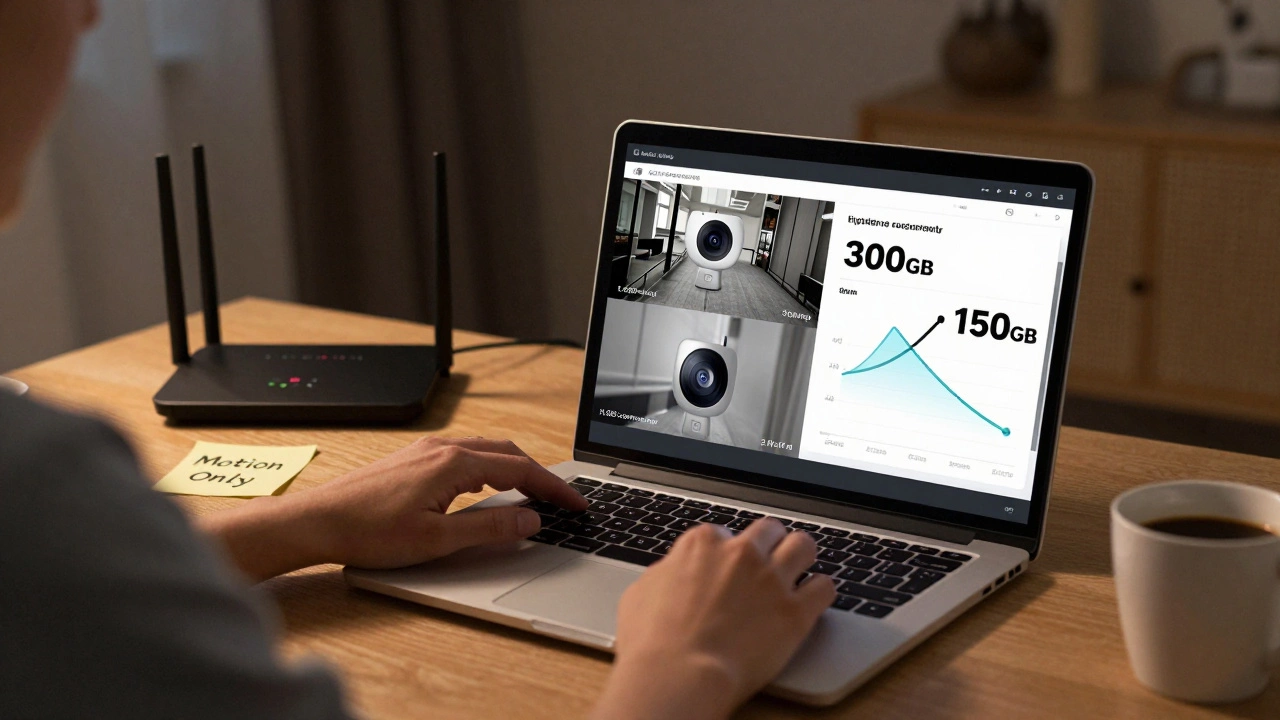
For example, switching from H.264 to H.265 on a 1080p camera can drop monthly usage from 300 GB to 150 GB. That’s the difference between hitting your ISP’s data cap-or staying well under it.
Continuous vs. Motion Recording: The #1 Way to Save Bandwidth
Recording all day, every day is the biggest bandwidth hog. Most people don’t need to watch 12 hours of empty hallway footage. Motion-triggered recording changes everything.
According to Pro-Vigil’s January 2024 analysis, motion-only recording reduces bandwidth by 60-90%. One Reddit user, u/SmartSetup99, cut their monthly usage from 280 GB to just 75 GB by switching to motion detection and lowering resolution to 720p. No one noticed the difference in footage quality-just fewer buffering issues during Zoom calls.
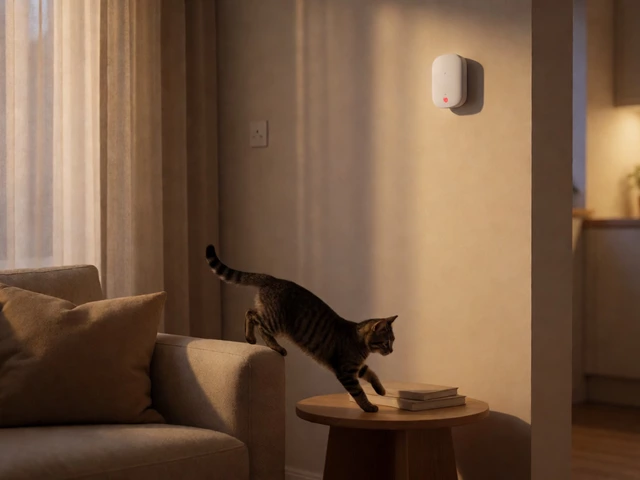
Even better: some newer cameras now use AI to detect people, vehicles, or pets. That means they ignore waving trees, passing cars, or your cat walking by. Verkada’s AI models reduce unnecessary recording by 70-85%. You’re only saving what matters.
WiFi Band: 2.4GHz vs. 5GHz Matters More Than You Think
Most people don’t realize their router broadcasts on two separate WiFi bands. The 2.4GHz band has longer range but slower speeds and more interference from microwaves, baby monitors, and other devices. The 5GHz band is faster and cleaner-but doesn’t reach as far.
Here’s the problem: many wireless cameras default to 2.4GHz because it’s easier to connect. But that band maxes out at around 20-25 Mbps in real-world use. If you’ve got five cameras each using 3 Mbps, you’re already at 15 Mbps-and that’s before your phone, laptop, or smart TV even turns on.
Move your cameras to the 5GHz band if your router supports it. Most modern cameras (like the Reolink RLC-823A) can connect to both. Use 5GHz for cameras, leave 2.4GHz for smart lights and thermostats. It’s a simple fix that stops your network from choking.
How Many Cameras Can Your Router Handle?
Most home routers can handle 10-15 devices without issue. But cameras are different. They’re always transmitting data. A 10-camera system at 1080p and 15 FPS, using H.265 compression, needs 10-25 Mbps just for video. That’s fine on a 300 Mbps plan. But if you’re on a 100 Mbps plan with other heavy users (streaming, gaming, video calls), you’re running on empty.
Here’s a quick guide based on typical setups:
- 1-3 cameras (720p, motion-only): Needs 5-10 Mbps → Works on any modern plan
- 4-6 cameras (1080p, motion-only): Needs 10-25 Mbps → Needs 100+ Mbps internet
- 7-10 cameras (1080p, 24/7): Needs 40-60 Mbps → Requires 200+ Mbps and 5GHz
- 10+ cameras (4K or continuous): Needs 100+ Mbps → Consider wired or dedicated network
Many users don’t realize their internet plan has a data cap. As of January 2025, 41% of major US ISPs cap users at 1 TB per month. One 4K camera on 24/7 recording hits that limit in 30 days. Add a second? You’re over before the end of the month.
What’s Causing Your WiFi to Slow Down?
If your internet suddenly feels sluggish after installing cameras, here’s what’s likely happening:
- Your cameras are on 2.4GHz and saturating the band
- You’re recording 24/7 instead of using motion detection
- You’re using 1080p or 4K on cameras that don’t need it (like a backyard gate)
- Your router is old (WiFi 5 or earlier) and can’t handle multiple high-bandwidth streams
- Your ISP has a low data cap and you’ve hit it
Amazon reviews for popular cameras like the Ring Stick Up Cam show that 32% of 1-star reviews mention “slow internet” or “network issues.” It’s not the camera’s fault-it’s how it’s set up.
How to Fix It: 5 Practical Steps
You don’t need to buy a new router or cancel your internet. Here’s how to fix bandwidth issues in under an hour:
- Switch to motion-triggered recording - This alone can cut data use by 70%.
- Lower resolution where you don’t need it - Use 720p for driveways or backyards. Save 1080p for front doors.
- Enable H.265 compression - Check your camera app settings. If it’s off, turn it on.
- Move cameras to 5GHz WiFi - Use your router’s app to assign each camera to the 5GHz network.
- Use Quality of Service (QoS) - In your router settings, prioritize camera traffic so it doesn’t get blocked during video calls or streaming.
Pro tip: If you have more than 5 cameras, consider local storage (like an NVR) instead of cloud recording. It cuts bandwidth use to near zero-your footage stays on-site. Over 68% of commercial installations now use this method, and it’s becoming common in homes too.

Is WiFi Even the Right Choice?
Wireless cameras are convenient, but they’re not perfect. If you’re running 8+ cameras, especially in a large home or small business, you might be better off with wired systems. They don’t compete for bandwidth. They’re more reliable. And they’re often cheaper in the long run when you factor in data overages or upgraded internet plans.
For most homes with 1-4 cameras, WiFi works fine-if you optimize it. For larger setups, consider hybrid systems: wireless for easy spots, wired for critical areas.
What’s Changing in 2025?
Technology is catching up. New cameras released in early 2025 include built-in AI that analyzes motion on the device itself-meaning less data gets sent to the cloud. WiFi 6 support is now standard in mid-range models like the Reolink RLC-823A. WiFi 6 reduces interference and handles multiple streams better, cutting bandwidth use by 25-30% compared to older WiFi 5 models.
The Security Industry Association launched the “Video Quality Matters” initiative in January 2025 to standardize bandwidth reporting. That means manufacturers will have to be clearer about real-world usage-not just ideal lab conditions.
By 2027, Gartner predicts 85% of new commercial installations will need a separate network just for cameras. That’s how serious the bandwidth problem is becoming.
Final Verdict: Yes, They Use a Lot-But You Can Control It
Wireless security cameras do use a lot of WiFi-if you let them. But most of that usage is unnecessary. You don’t need 4K on your garage door. You don’t need 24/7 recording if you’re home during the day. You don’t need to be on 2.4GHz if your router supports 5GHz.
With a few smart settings, you can have strong security without killing your internet. Lower resolution. Use motion detection. Switch bands. Enable compression. Prioritize traffic. That’s it.
And if you’re still struggling? It’s not the camera’s fault. It’s the setup. Fix that, and your WiFi will thank you.