Security Camera Setup Assistant
Select your camera type below to get personalized setup instructions and troubleshooting tips.
Wi-Fi Smart Camera
Most common for homeowners. No cables needed for data.
DVR/NVR System
Traditional CCTV with recording box. Requires networking setup.
Cellular Camera
Uses SIM card. Perfect for remote locations without Wi-Fi.
Old Smartphone
Budget-friendly hack using apps like IP Webcam.
Select a Camera Type Above
Click on any camera type to see detailed setup steps.
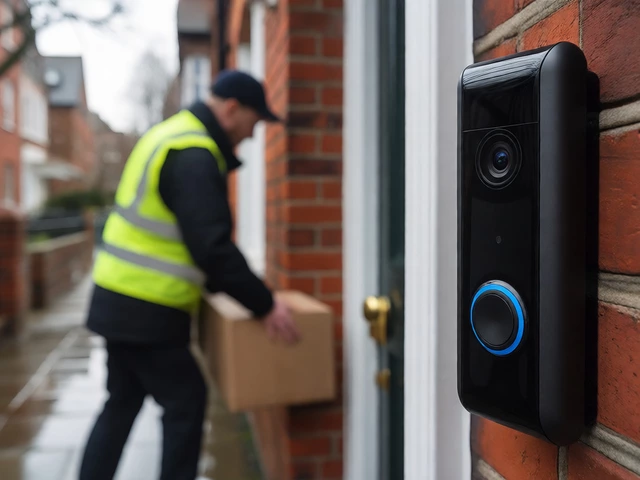
Picture this: you're stuck in traffic on the M4, and your phone buzzes. It's not a text from a friend; it's a live alert showing someone walking up to your front door. You tap the notification, and within seconds, you see exactly what's happening. This isn't science fiction-it's the standard for modern home security. But getting there requires more than just plugging a camera into a wall socket. You need to bridge the gap between hardware and software.
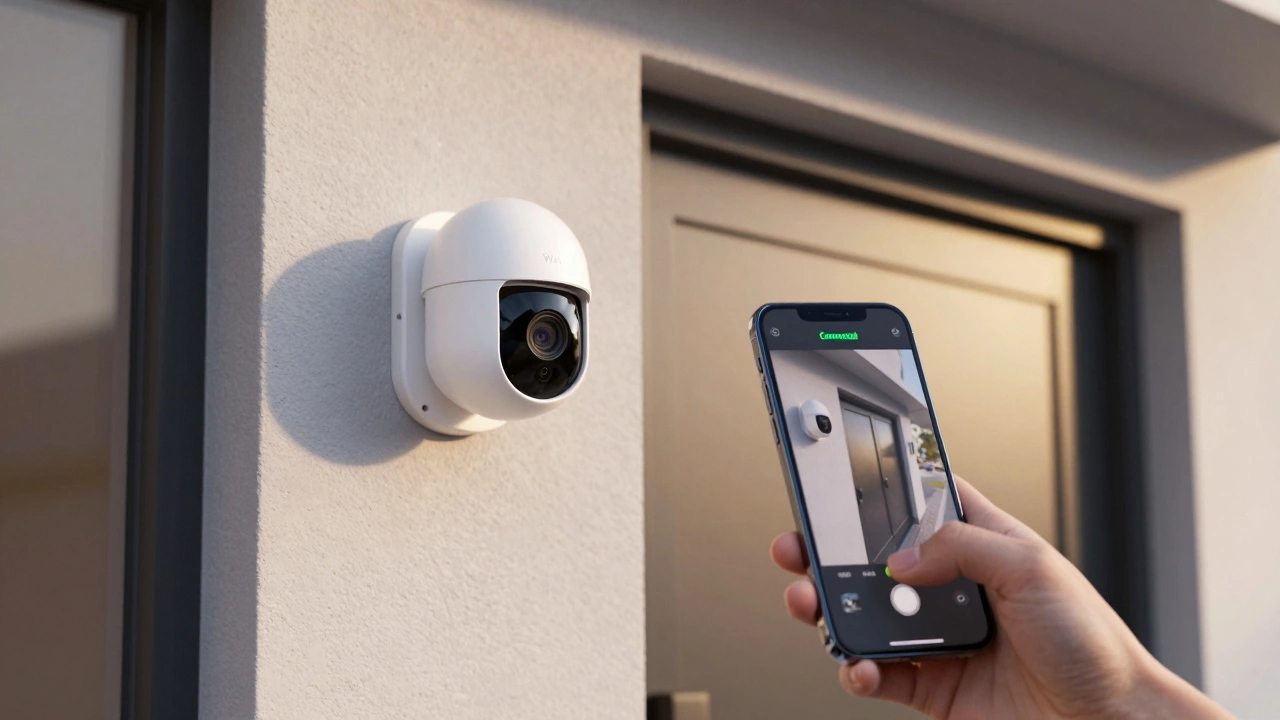
Connecting a security camera is a device that captures video footage for surveillance purposes, often connecting to smartphones for remote monitoring to your phone seems simple, but if you've ever stared at a blinking LED light wondering why it won't pair, you know the truth. The process varies wildly depending on whether you have a plug-and-play Wi-Fi camera, a complex DVR system, or even an old smartphone you want to repurpose. Let’s cut through the jargon and get your eyes on the feed.
The Four Ways to Connect a Camera to Your Phone
Before you download an app, you need to know what kind of camera you’re dealing with. In 2026, the market has settled into four distinct categories. Knowing which one you have dictates your entire setup process.
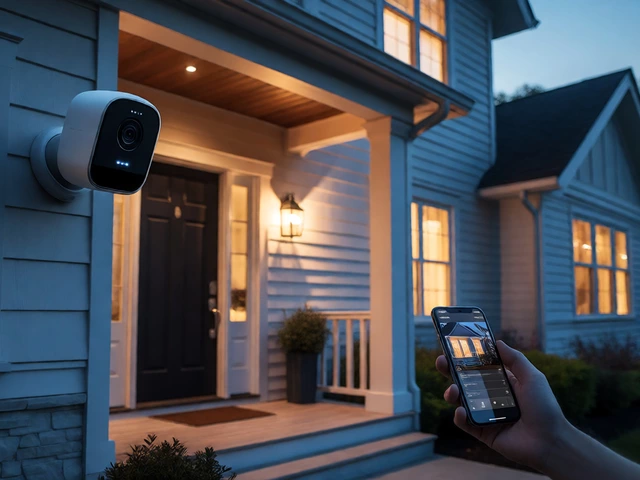
- Wi-Fi Smart Cameras: These are the most common for homeowners. Brands like Eufy, Ring, and ZoomOn make these. They connect directly to your home router via Wi-Fi and use a proprietary app. No cables (other than power) are needed for data.
- DVR/NVR Systems: Think traditional CCTV with wires running everywhere. These cameras send video to a central recording box (Digital Video Recorder or Network Video Recorder). To view them on a phone, you usually need to configure network settings or use a specific P2P code.
- Cellular Cameras: These use a SIM card instead of Wi-Fi. Ideal for farms, construction sites, or areas with no broadband. They rely on 4G/LTE signals.
- Repurposed Smartphones: Yes, you can turn an old Android or iPhone into a security camera using apps like IP Webcam or CameraFTP. This is a budget-friendly hack for temporary monitoring.
Step-by-Step: Connecting a Wi-Fi Smart Camera
This is the route 80% of users take. If you bought a standalone camera recently, this is likely your scenario. The process is surprisingly consistent across brands like Eufy, Honor, and Backstreet Surveillance.
- Download the Official App: Go to the iOS App Store or Google Play. Search for the brand’s specific app (e.g., "Eufy Security," "Honor CCTV"). Avoid third-party generic apps unless you’re doing advanced setups.
- Create an Account: Open the app and sign up. You’ll need an email address and a strong password. Most systems now require two-factor authentication (2FA) for security, so keep your phone handy for verification codes.
- Connect Your Phone to 2.4 GHz Wi-Fi: This is the #1 mistake people make. Most budget and mid-range security cameras only support 2.4 GHz networks. If your phone is connected to your router’s 5 GHz band, the camera won’t find it. Switch your phone’s Wi-Fi to the 2.4 GHz SSID before starting.
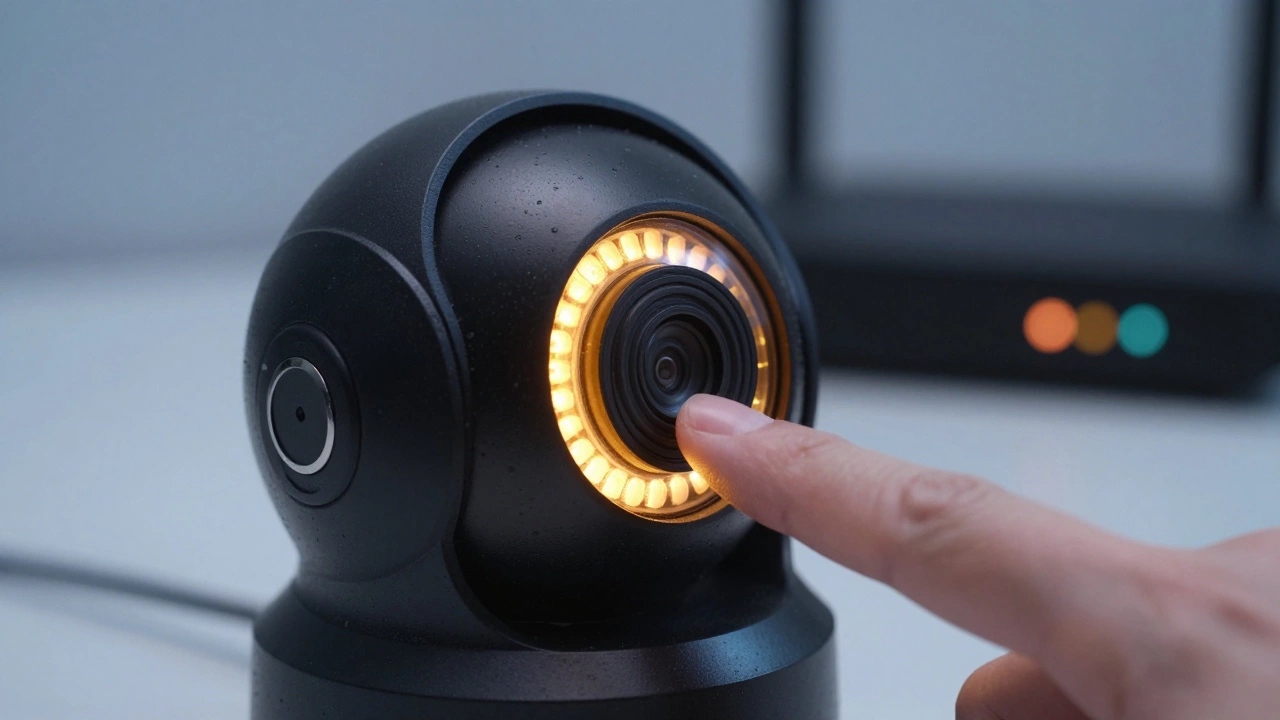
- Power On and Enter Pairing Mode: Plug in the camera. Look for a button-usually small and recessed. Hold it down for 5-10 seconds until the LED starts flashing amber or blue. This tells the camera it’s ready to talk.
- Add the Device in the App: Tap the “+” or “Add Device” icon in the app. It will ask for your Wi-Fi password again. Then, it will prompt you to scan a QR code. Point your phone’s camera at the QR code printed on the camera (or vice versa, depending on the brand).
- Wait for Registration: The app will show a loading screen. This can take 30-60 seconds. Once done, you’ll see a live preview. Name your camera (e.g., "Front Door") and place it in a room category.
If the connection fails, don’t panic. Reset the camera by holding the button longer, ensure you’re within 10 feet of the router during setup, and double-check that your Wi-Fi password doesn’t contain special characters that some older firmware versions struggle to parse.
Setting Up Traditional DVR/NVR Systems
If you have a box with multiple cables plugged in, you’re looking at a DVR (for analog cameras) or NVR (for IP cameras). Connecting these to a phone is less about pairing and more about networking.
Most modern NVRs come with a built-in mobile app (like Hik-Connect or Dahua DMSS). Here’s how it works:
- Find the QR Code: Many NVRs display a QR code on their local monitor interface under "Network" or "Remote Access." Scan this with the mobile app.
- P2P ID Method: If there’s no QR code, look for a "Device ID" or "Serial Number" on the NVR’s menu. Enter this manually into the app along with a verification code.
- Internet Connection: Ensure the NVR is connected to your router via an Ethernet cable. Without internet, remote viewing is impossible.
For older systems without cloud features, you might need to set up port forwarding on your router. This involves opening specific ports (like 80 for HTTP or 554 for RTSP) and pointing them to the NVR’s local IP address. It’s powerful but risky if not configured securely, as it exposes your network to the public internet. For most users, sticking to the manufacturer’s P2P cloud service is safer and easier.
Using Cellular Cameras for Remote Locations
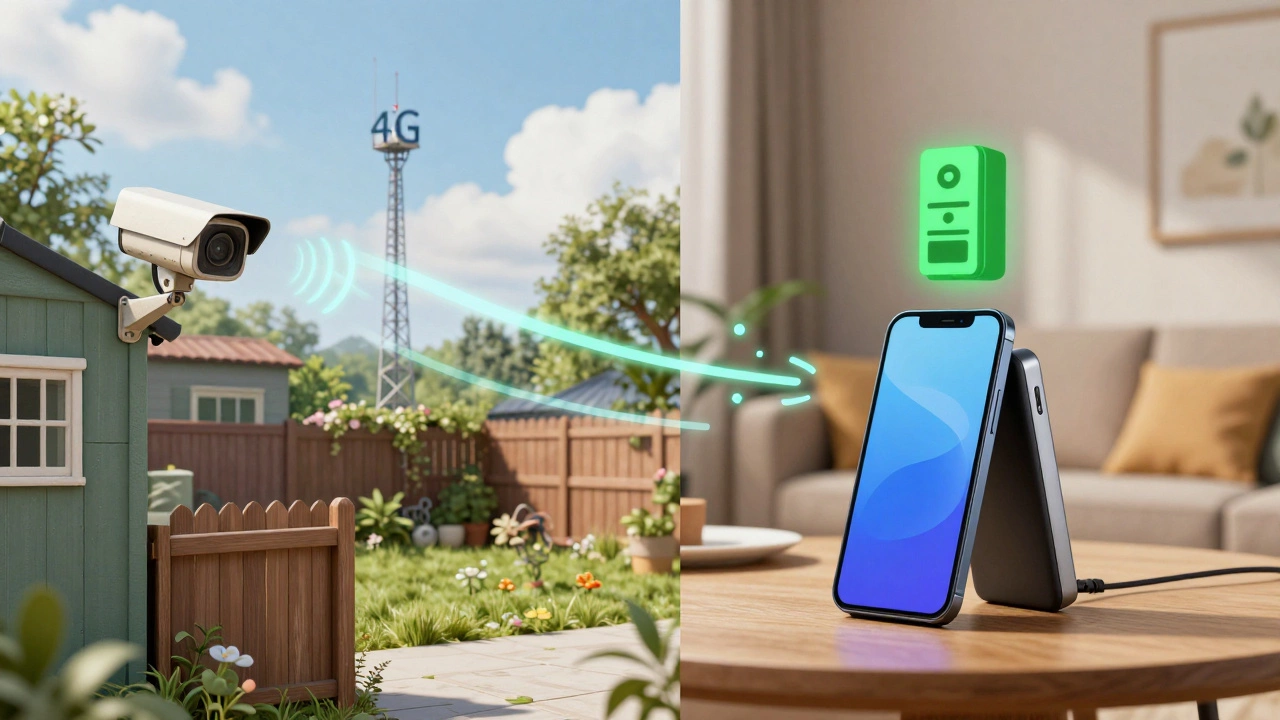
Got a shed in the backyard or a rural property with spotty Wi-Fi? Cellular cameras are your best bet. As noted by Aura Smart in early 2025, these devices operate independently of your home network.
The setup is similar to Wi-Fi cameras but swaps the router for a SIM card. Insert an active SIM card with a data plan into the camera. Power it on, then open the companion app. Instead of entering a Wi-Fi password, you’ll verify the cellular signal strength. The camera connects to the 4G/LTE network, and the app pulls the stream from the cloud. Keep in mind that latency might be slightly higher (a few hundred milliseconds) compared to Wi-Fi, and you’ll pay monthly data fees. However, for locations where Wi-Fi simply doesn’t reach, it’s a game-changer.
Hack: Turn an Old Smartphone Into a Camera
Don’t throw away that cracked iPhone 8 or dusty Samsung Galaxy. Apps like IP Webcam is an application that turns an Android device into a network-accessible webcam server or CameraFTP can transform them into functional security cameras.
Here’s the quick workflow:
- Install the IP camera app on the old phone.
- Open the app and start the server. Note the local IP address and port number (e.g., 192.168.1.5:8080).
- On your main phone, open a browser or a compatible viewer app and enter that address.
This method is free and great for temporary monitoring, like watching a pet while you’re out for an hour. However, it lacks the durability, weather resistance, and night vision of dedicated hardware. Also, remember to keep the old phone plugged in at all times; batteries degrade quickly when constantly streaming video.
| Method | Difficulty | Best For | Ongoing Costs |
|---|---|---|---|
| Wi-Fi Smart Camera | Easy | Homeowners, apartments | Optional cloud storage |
| DVR/NVR System | Moderate | Large homes, businesses | Hard drive replacement |
| Cellular Camera | Easy | Remote sites, no Wi-Fi | Monthly data plan |
| Old Smartphone | Technical | Budget/temporary use | Electricity only |
Troubleshooting Common Connection Issues
Even with clear instructions, things go wrong. Here are the most frequent hurdles and how to clear them.
"Camera Not Found" Error: This almost always means your phone is on the 5 GHz band. Switch to 2.4 GHz. Also, move closer to the router. During setup, the camera needs a strong signal to grab its credentials.
Live View Lagging or Buffering: Check your upload speed. Streaming HD video requires about 1-2 Mbps per camera. If you have five cameras on a slow connection, expect choppy video. Try lowering the resolution in the app settings to 720p.
QR Code Won’t Scan: Clean the camera lens. Adjust your phone’s brightness. If the app allows, try manual entry of the serial number instead.
App Crashes on Launch: Clear the app cache or reinstall it. Ensure your phone’s OS is updated. Older phones may struggle with newer app versions requiring heavy processing for AI detection.
Security Best Practices for Your Feed
Connecting your camera to the internet opens a window into your home. Protect it. Change the default password immediately. Enable two-factor authentication (2FA) in the app settings. Regularly check for firmware updates, as manufacturers patch security vulnerabilities frequently. If you use port forwarding for DVRs, consider using a Virtual Private Network (VPN) like OpenVPN’s Cloud Connexa to encrypt the traffic, rather than leaving ports wide open to the world.
Why won't my security camera connect to my phone?
The most common reason is a Wi-Fi mismatch. Ensure your phone is connected to the 2.4 GHz network, not 5 GHz. Other causes include incorrect Wi-Fi passwords, the camera being too far from the router during setup, or the camera not being in pairing mode (check for a flashing LED).
Can I view my security camera on my phone without Wi-Fi?
Yes, if the camera itself has an internet connection. For example, a cellular camera uses a SIM card to connect to 4G/LTE. Alternatively, if you are on the same local network as a Wi-Fi camera, you can view it locally, but to view it remotely from anywhere, the camera must have an outbound internet connection.
Do I need a hub to connect my camera to my phone?
Not necessarily. Most modern Wi-Fi smart cameras connect directly to your router. Hubs are typically required for Zigbee or Z-Wave devices, or for certain battery-powered ecosystems like Apple HomeKit Secure Video, which may require a HomePod or Apple TV as a base station.
Is it safe to use an old phone as a security camera?
It is safe for temporary or indoor use if you secure the app with a strong password and keep the software updated. However, old phones lack weatherproofing and robust night vision. For long-term outdoor security, dedicated hardware is recommended due to better durability and specialized lenses.
How do I reduce lag when viewing my camera feed?
Lag is usually caused by poor internet upload speeds or high resolution settings. Try switching your camera’s video quality from 1080p to 720p in the app settings. Also, ensure your router is not congested with other devices downloading large files simultaneously.